Short answer
iPhone can geotag new photos automatically when Location Services is enabled for Camera. That location is useful inside Photos, Maps, and many file workflows, but it can be missing, hidden, stripped during sharing, or stored in a format another tool does not read well.
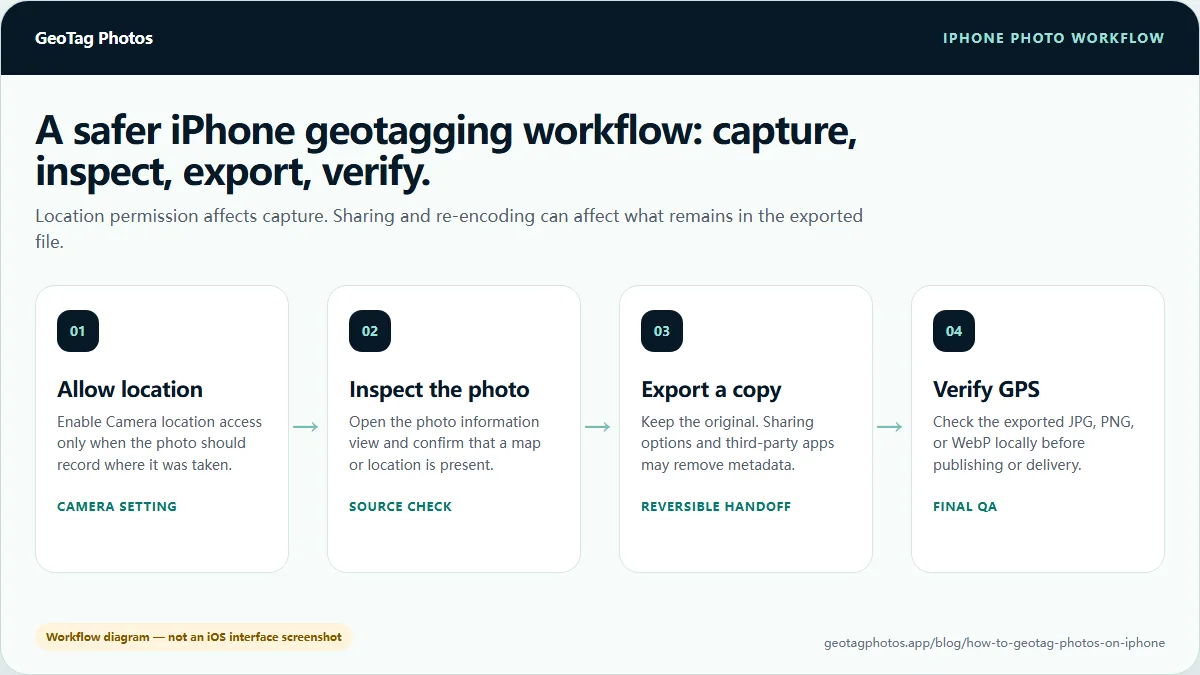
For a deliverable file, use a simple workflow: check the photo for GPS, export or save a copy when needed, add accurate coordinates to that copy, and verify the output before sending it to a client, website, or local publishing workflow.
How iPhone geotags new photos
When Camera has location permission, iPhone can attach location information to photos and videos you capture. This is controlled through iOS Location Services, not by a separate geotagging app.
Open Settings, review Privacy & Security, then Location Services. Confirm that Location Services is on and that Camera has the access level you intend to use. If precise location is disabled, a photo may have a broader location instead of an exact coordinate.
- Use location access for Camera when you want new photos to be geotagged automatically.
- Use precise location when exact coordinates matter for field work, client delivery, or property photos.
- Turn location access off when you do not want new photos to include capture location.
How to check if an iPhone photo is geotagged
The Photos app can show whether an image has a location in your library, but a file-level metadata check is safer before delivery. A visible map in Photos and readable EXIF GPS in an exported file are related, but they are not always the same thing after sharing, conversion, or download.
Upload the photo or exported copy to a GPS metadata checker. If latitude and longitude are readable, the file is geotagged. If GPS is missing, decide whether to add a location to a copy or go back to the original iPhone library export.
- Use the Photos app for a quick visual check.
- Use the Photo EXIF GPS Checker when another person, platform, or workflow needs to read the file metadata.
- Check the exported file, not only the original item in the iPhone library.
How to add GPS to an old iPhone photo
Old screenshots, downloaded images, edited exports, and photos captured with location access disabled may have no GPS metadata. If the goal is a file that can be verified outside Apple Photos, work on an exported copy instead of assuming the phone library view is enough.
Choose the real location represented by the image, add latitude and longitude to the copy, then re-open the output in a checker. Keep the original file unchanged so you have a rollback path if the coordinate, format, or downstream platform behaves differently than expected.
- Export or save a copy of the iPhone photo.
- Use a map click, address search, or manual latitude and longitude to add GPS.
- Download the tagged copy and verify the GPS fields before publishing or delivery.
HEIC vs JPEG for iPhone geotagging
Many iPhones capture photos as HEIC when High Efficiency formats are enabled. HEIC can carry metadata, but browser-based metadata writing and third-party viewer support are less predictable than JPEG.
For the most reliable GPS EXIF workflow, use a JPEG copy when you need another system to read the location. GeoTag Photos detects HEIC, but v1 does not write HEIC GPS metadata, so convert or export to JPEG before adding GPS when dependable output matters.
- Use HEIC for efficient storage inside Apple workflows.
- Use JPEG when broad metadata compatibility and client verification matter.
- Check the exported file after conversion because metadata can change during sharing or export.
How to share iPhone photos without leaking location
Location metadata is useful for field records, local SEO workflows, real estate folders, and client handoffs. It can also expose private places if you share personal photos casually.
Before sharing sensitive photos from iPhone, review the share options and location settings. Apple provides controls for location information, and some share flows let you remove location before sending.
- Keep location metadata when the recipient needs to verify where a photo belongs.
- Remove location metadata when sharing personal, private, or sensitive images.
- Remember that messaging apps, social networks, and publishing platforms may remove or rewrite metadata.
Common iPhone geotagging problems
Most iPhone geotagging issues come from permissions, sharing behavior, file format, or assuming that every app reads metadata the same way. Treat the exported file as the source of truth when another system needs to verify GPS.
If a platform says there is no location, re-check the exact file you uploaded. It may not be the same file that showed a location in Apple Photos.
- No location: Camera did not have location access, precise location was off, or the image was downloaded from another source.
- Wrong location: the phone captured poor GPS, the file was edited later, or the wrong coordinate was added.
- Location disappears after sharing: the share method or platform stripped metadata.
- HEIC cannot be written in GeoTag Photos v1: export or convert to JPEG before adding GPS.
Where GeoTag Photos fits
GeoTag Photos does not edit the iPhone Photos library directly. It works with files selected in the browser, reads available metadata locally, and writes GPS metadata to an exported copy.
That makes it useful when you need a verifiable file for a client, a local business workflow, a real estate folder, a field report, or a website upload. Use iPhone settings for future capture behavior, and use GeoTag Photos when a specific exported file needs GPS you can verify.
- Check whether an iPhone photo copy already contains GPS.
- Add or correct GPS on JPG, PNG, or WebP output where compatibility allows.
- Use JPEG for the safest GPS EXIF handoff.
- Verify the output before sending it to a client or uploading it to another platform.