Format-focused page
Geotag Images with GPS Metadata for JPG, PNG, and WebP
Geotag images in your browser. Add GPS metadata to JPG, PNG, and WebP files, understand format compatibility, batch edit image metadata, and export tagged copies.
Choose the workflow based on the image format and who must read the GPS.
JPEG, PNG, and WebP can carry metadata differently. Review format compatibility before processing a mixed batch so the exported files work in the intended viewer, CMS, or client workflow.
Live workspace
Use the workspace to geotag JPG, PNG, and WebP images.
Upload a mixed batch, review formats, set GPS coordinates, apply metadata, and export tagged files with compatibility notes.
Live tool
Start geotagging in the workspace.
Load the browser workspace when you are ready to upload files, set GPS coordinates, and export tagged photos.
Choose JPG, PNG, or WebP files.
Use map, address search, or manual coordinates.
Download one image or a batch ZIP.
Verified output model
The same coordinates can have different format compatibility.
This sample reflects the compatibility labels used by the current export workflow.
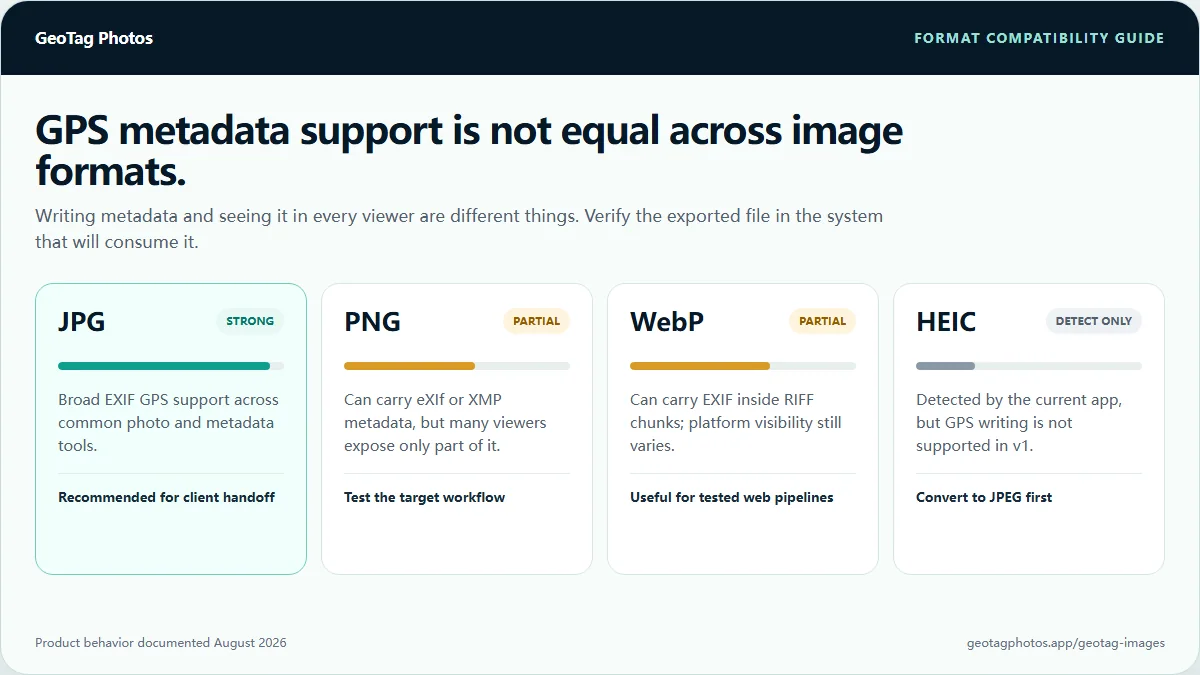
Image metadata
A geotag image workflow that explains format limits.
Choose JPEG for broad GPS EXIF compatibility. Verify PNG and WebP output in the viewer, CMS, or publishing platform you use.
- Use this page when the source files include JPG, PNG, WebP, or mixed image batches.
- Treat JPEG as the primary format for reliable GPS EXIF output.
- Use PNG and WebP metadata with compatibility notes because not every viewer shows those fields.
- Check exported files when your client, CMS, or publishing platform needs to read metadata.
JPG GPS EXIF as the reliable path
JPEG is the practical default when a geotagged image must be verified by common metadata tools.
PNG metadata with clear caveats
PNG can carry metadata, but support varies. Check that your destination can read the fields you need.
WebP EXIF for modern web images
WebP can store EXIF metadata, but output should be verified when another platform needs to read it.
Batch image table
Review filenames, original GPS, target GPS, format status, and per-file exceptions before export.
CSV coordinate import
Match coordinates to filenames when a job includes many images across properties or service areas.
Reports for handoff
Export verification data with filename, format, coordinate, status, and compatibility notes.
Recommended workflow
Geotag mixed image batches without pretending formats behave the same.
The best image workflow separates location accuracy from format compatibility. Coordinates can be correct even when a viewer hides metadata for PNG or WebP.
Format map
JPG, PNG, WebP, and HEIC do not have equal GPS metadata support.
This page is intentionally explicit about format differences so users can choose the safest output for their downstream tools.
| Area | Support | Practical note |
|---|---|---|
| JPG/JPEG | Primary GPS EXIF support | Best for camera photos, local SEO image delivery, metadata verification, and client handoff. |
| PNG | Partial support | Useful for design and transparent-image workflows, but metadata visibility varies across viewers. |
| WebP | Partial EXIF support | Useful for modern websites, but metadata handling depends on the publishing and viewing stack. |
| HEIC | Detected only in v1 | Convert to JPEG first when you need reliable GPS EXIF output and verification. |
Honest image metadata guidance is part of the product.
A geotag image page should not oversell PNG or WebP support. It should explain where metadata is reliable, where it is partial, and how users can verify the output.
- The app labels PNG and WebP metadata as compatibility-sensitive instead of pretending every viewer behaves the same.
- Original image processing happens locally in the browser.
- Reports and checker links help users verify output instead of trusting a black-box export.
- Local SEO copy stays practical and avoids ranking guarantees.
Related workflows
Continue with the workflow that matches your next task.
Move from checking existing GPS, to editing coordinates, to format-specific guidance without repeating work.
FAQ
Geotag Images questions
Practical answers about privacy, formats, GPS accuracy, exports, and local SEO workflows.
What does it mean to geotag images?+
Geotagging images means adding latitude and longitude metadata to an image file. For JPEG this usually means GPS EXIF fields. PNG and WebP can also carry metadata, but viewer and platform support is less consistent.
Will PNG or WebP GPS metadata appear in my photo viewer or CMS?+
PNG and WebP can carry location metadata, but viewers and CMS image pipelines may not display or retain it. Check the exported file and the copy served by your publishing platform. Choose JPEG when broad GPS EXIF compatibility matters.
Can PNG images contain GPS metadata?+
PNG can carry metadata through chunks such as eXIf or XMP, but many common viewers do not expose those fields clearly. Use PNG metadata when your workflow or target system can read it.
Can WebP images contain GPS metadata?+
WebP can carry EXIF metadata in a RIFF chunk. Support varies by tool, viewer, and publishing platform, so exported WebP files should be checked before delivery.
Which image format is best for reliable geotagging?+
JPEG is still the safest choice for GPS EXIF compatibility. Use PNG or WebP when the format is required, but treat metadata visibility as partial unless your target system has been tested.
Can I geotag multiple images at once?+
Yes. Free users can process 5-image batches and export up to 10 images per day. Pro users can handle 50-image batches with no daily export cap, CSV coordinate imports, ZIP export, reports, resize, watermark, and saved location presets.
Are original images uploaded to your server?+
No. Reading metadata, writing GPS fields, resizing, watermarking, ZIP export, and report generation run in your browser. Server routes handle accounts, usage, payments, and address search.