Action page
Add Geotag to Photo Online with GPS EXIF Metadata
Add a geotag to a photo online in your browser. Set GPS coordinates by map, address search, or latitude and longitude, then download tagged JPG, PNG, or WebP files.
Use this workflow when a photo needs a new or corrected location.
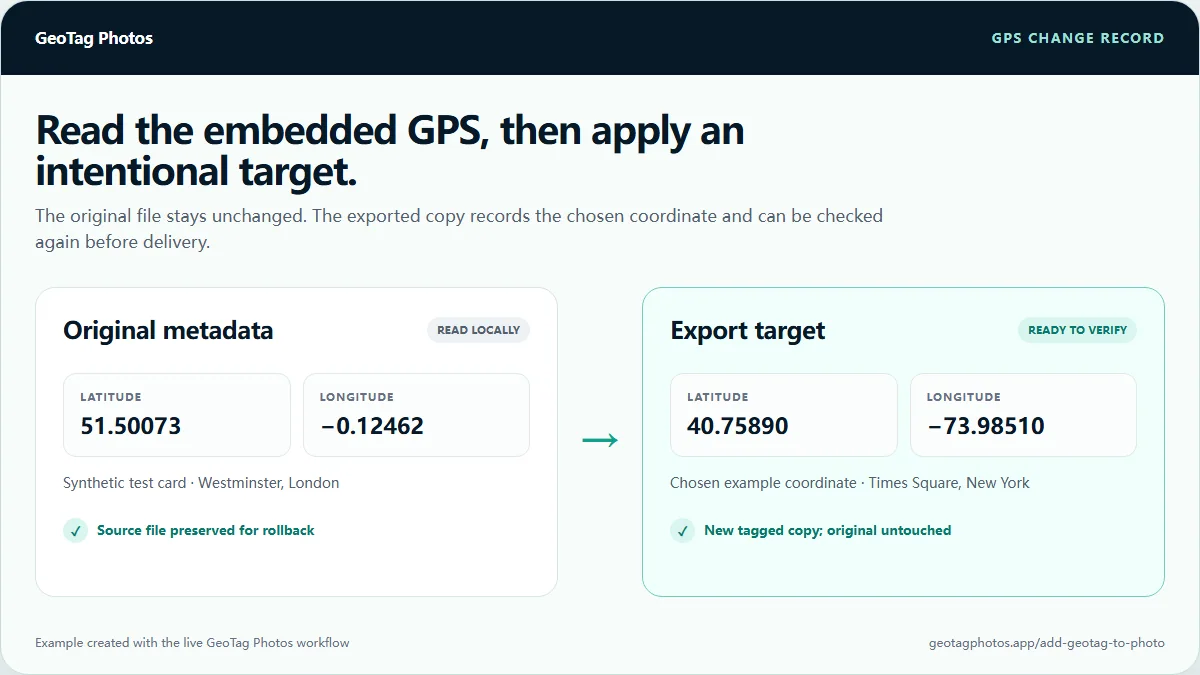
Start by reading the current metadata, choose the exact target location, and export a new copy that can be checked before delivery or publishing.
Live workspace
Use the geotag editor to add GPS metadata now.
Start with 5-image batches and 10 daily exports for free. Manual coordinates, map click, and direct image download are available before moving into Pro batch features.
Live tool
Start geotagging in the workspace.
Load the browser workspace when you are ready to upload files, set GPS coordinates, and export tagged photos.
Choose JPG, PNG, or WebP files.
Use map, address search, or manual coordinates.
Download one image or a batch ZIP.
Four-step workflow
A traceable path from the source file to verified GPS output.
The source stays unchanged while the browser creates a tagged copy for verification.
- 01Uploadsample-photo.jpg
- 02LocateMap or exact coordinates
- 03ApplyGPS EXIF to an exported copy
- 04VerifyRecheck latitude and longitude
Editing controls
Everything needed to add location metadata deliberately.
Choose an exact location, preserve the source file, and verify the exported copy before it enters a client or publishing workflow.
- Use this page when a photo has no GPS metadata or the existing GPS is wrong.
- Choose the target coordinate deliberately instead of relying on a random city center or copied template value.
- Export a new tagged copy so the original source file remains available for rollback.
- Verify at least one exported file before client delivery or local publishing.
Manual latitude and longitude
Paste exact decimal coordinates when a client, job site, map pin, or internal system already provides the target location.
Map click and marker workflow
Use the map when the location is easier to confirm visually than through a coordinate spreadsheet.
Address and place search
Signed-in users can search an address or place name, then apply the returned coordinate to the photo batch.
Batch apply with exceptions
Use one location for a group, then override individual files when a batch includes multiple properties or job sites.
Metadata fields beyond GPS
Add title, description, keywords, author, and copyright fields when they help the delivery workflow.
Download choices
Download a single tagged image directly or export a ZIP when the batch has multiple processed files.
Recommended workflow
Add a geotag without losing control of the source file.
A good geotagging workflow is not only about writing coordinates. It is about selecting the right location, exporting a copy, and checking the result.
Compatibility
Choose the output format based on who needs to read the GPS.
Different image formats can carry metadata differently. This page states the practical compatibility so users do not assume every viewer behaves the same.
| Area | Support | Practical note |
|---|---|---|
| JPG/JPEG | Strong GPS EXIF support | Recommended when the output needs to be checked by common metadata viewers or delivered to clients. |
| PNG | Partial metadata compatibility | Useful in design workflows, but some operating-system viewers and platforms hide or ignore metadata fields. |
| WebP | Partial EXIF support | Good for web image workflows, but GPS visibility can vary by library, viewer, and platform. |
| HEIC | Detected, not written in v1 | Convert HEIC to JPEG first when dependable GPS EXIF output matters. |
Private, practical, and honest about local SEO.
GeoTag Photos is positioned as a metadata preparation tool. It helps teams create cleaner deliverables without making unrealistic ranking promises.
- Original image files are processed locally in the browser.
- Address search uses a server-side lookup only after sign-in because usage has to be attached to an account.
- The product avoids claims that GPS metadata alone improves Google Maps rankings.
- Verification links guide users to check output files after export.
Related workflows
Continue with the workflow that matches your next task.
Move from checking existing GPS, to editing coordinates, to format-specific guidance without repeating work.
FAQ
Add GPS to Photos questions
Practical answers about privacy, formats, GPS accuracy, exports, and local SEO workflows.
How do I add a geotag to a photo?+
Upload a photo, choose a map location, search an address, or type latitude and longitude manually. GeoTag Photos writes the target GPS metadata into an exported copy while keeping the original file unchanged.
Which format is best when I add GPS metadata?+
JPEG is the safest output format because EXIF GPS support is broadly understood by cameras, metadata viewers, and desktop tools. PNG and WebP can carry metadata, but compatibility varies by platform.
Can I add exact latitude and longitude?+
Yes. You can type decimal latitude and longitude directly, click the map, drag the marker, use current location, or search for an address after signing in.
Can I add a geotag to a photo online for free?+
Yes. Free users can add GPS coordinates with manual entry or map click, process 5-image batches, export up to 10 images per day, and download tagged files without uploading original photos to the server.
Are my photos uploaded to your server?+
No. The metadata writing pipeline runs in your browser. Server routes handle account, usage, payment, and address lookup, but original image files do not need to be uploaded for processing.
Can I add the same geotag to multiple photos?+
Yes. Free users can apply one target location to 5-image batches and export up to 10 images per day. Pro users can handle 50-image batches with no daily export cap, CSV coordinate imports, verification reports, resize, watermark, and saved locations.
Does adding a geotag guarantee better Google Maps rankings?+
No. Geotagging can support a cleaner local SEO publishing workflow, but rankings depend on many signals. Use GPS metadata for accuracy, verification, and client handoff, not as a ranking guarantee.
Can I check the result after exporting?+
Yes. Re-upload an exported file to the Photo EXIF GPS Checker to confirm the GPS coordinates and metadata fields are readable.